
September 24, 2026
SwiftServer 2.2.0: Local Shell, a Menu Bar Panel, and a Shell Inside Any Container
SwiftServer 2.2.0 adds a local terminal on your Mac, a menu bar panel that keeps monitoring after the last window closes, shells into running Docker containers, live Compose logs, machine restart, and a pause switch for monitoring.
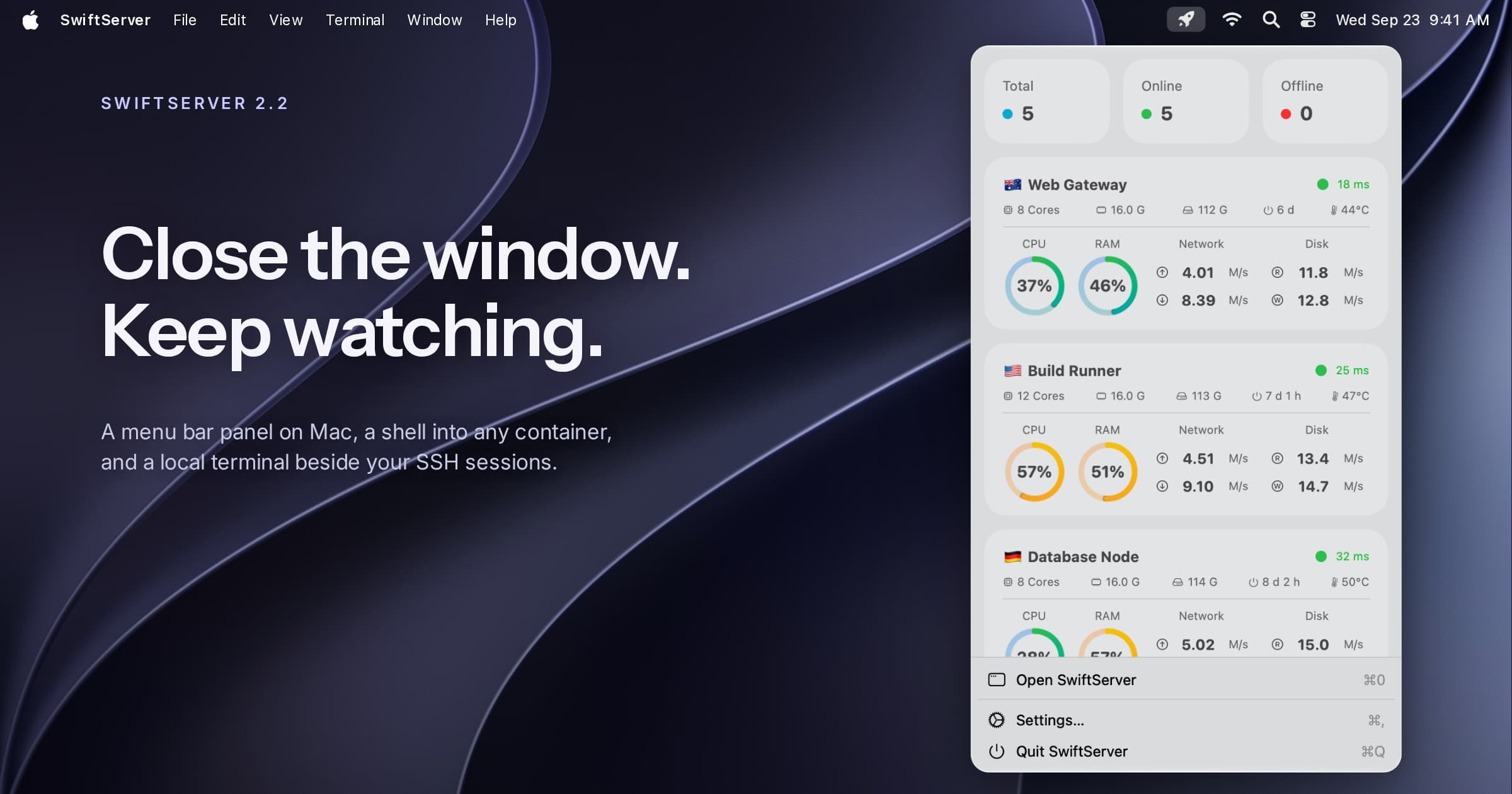
SwiftServer 2.2.0 is available now on the App Store for iPhone, iPad, and Mac. The Mac gets a local terminal, a menu bar panel that keeps monitoring after the last window closes, and a pause switch for monitoring. Every platform gets a shell into running Docker containers, live Compose logs, and a restart action on the status page.
Local Shell on Mac
Local Shell opens a shell on your own Mac in the same window as your SSH and Mosh sessions, with the same tabs, themes, fonts, and snippets. Open one with ⌘T, from Terminal → New Local Terminal, or from the Dashboard toolbar.
The session is your login shell, started the way Terminal.app starts it. Your profile runs, so Homebrew, nvm, asdf, and the rest of your setup are on the PATH. The ssh-agent socket is passed through, the session starts in your home folder, and it identifies itself as TERM_PROGRAM=SwiftServer with true color.
A shell started inside the App Store sandbox could not read your home folder or run your tools. Local Shell therefore relies on a small companion, SwiftServer Helper, installed once from Settings → Terminal → Local Shell. The installer is signed and notarized and needs no administrator password. The helper lives in your home folder, opens no network port, runs only while a local terminal is open, and updates itself from the same settings page. The Local Shell guide covers installation, the shell environment, and the Login Items approval macOS may ask for.
Local Shell is included for everyone, requires macOS 15 or later, and is Mac only.
Menu Bar Panel
Turn on Show in Menu Bar under Settings → Menu Bar, and SwiftServer keeps sampling your machines after you close its last window. When any machines are offline, the status item shows how many.
The panel lists the same status cards as the Dashboard, a total, online, and offline summary, and your live terminal, SFTP, and port forwarding sessions. Clicking a card opens that machine's status page; the context menu opens a terminal or SFTP session. The footer opens SwiftServer, starts a local terminal, pauses monitoring, or quits.
You choose which machines the panel follows, or let it follow your widget selection. With no window open, sampling runs every 30 seconds to 5 minutes and can pause on battery power. Mac widgets refresh at the same cadence. Reopening a window restores the full machine set and the Dashboard's own refresh rate. You can also hide the Dock icon while no windows are open and launch SwiftServer at login.
The menu bar panel is part of Premium.
A Shell Inside a Running Container
Open a running container in the Docker panel and choose Open Shell under Operations. SwiftServer starts bash if the image has it, otherwise sh, and opens it as a terminal session with its own sidebar entry, snippets, and, on the Mac, a separate window. Duplicate the session for a second shell into the same container. When the shell exits, the terminal shows the exit code.
Like the rest of the Docker panel, the shell runs over your existing SSH connection, with no Docker port to open. Open Shell is part of Docker management in Premium.
Compose Logs and Compose Files
Compose projects now use the same log viewer as containers. Logs loads the last 400 lines; Follow streams new lines as they arrive, with error output in its own color.
Each compose file the project was started from appears as an Edit button. SwiftServer finds the file from what Docker Compose recorded on the containers, opens an SFTP session in that folder, and loads the file in the editor. Open Project in SFTP opens the project directory.
Pause Monitoring
On the Mac, monitoring can be paused for the current session. The switch is in the Dock menu as Open Without Monitoring, in the Dashboard's refresh menu, in the View menu, and in the menu bar panel.
Pausing closes every monitoring connection. Terminals, SFTP, port forwarding, and the Docker panel keep working, and widgets keep their last snapshot. The next launch monitors as usual.
Restart a Machine
A machine's status page now has Restart Machine in its Actions menu. After confirmation, SwiftServer sends the command for the system: systemctl reboot or reboot on Linux, shutdown -r now on macOS, shutdown /r /t 0 on Windows, with sudo -n when the account is not root.
SwiftServer never asks for a sudo password. Before running anything privileged, it checks whether the account is root or in a sudo-capable group, and stops to ask if it is not. A progress panel follows the shutdown, waits for the machine with a backoff of up to 30 seconds between attempts, and reconnects. A change in the machine's boot identity confirms the reboot. Open terminal and SFTP sessions to that machine reconnect on their own.
Terminal and SFTP at the Same Directory
Open SFTP Here in a terminal opens an SFTP session in the shell's current directory. The directory is read over the same SSH connection, so it follows every cd. Mosh sessions fall back to the directory in the window title. Open Terminal Here in SFTP opens a terminal in the folder you are browsing. On iPhone the companion session opens as a sheet; on iPad and Mac it is a toolbar button.
Also in This Release
- Save Image for Global View snapshots. On iOS, sharing a snapshot of the map offers Save Image in the share sheet.
- Snippet editor. Snippets are edited in SwiftServer's own editor, with line numbers and shell syntax highlighting.
- Terminal hyperlinks. Links printed by command line tools open with ⌘-click on the Mac.
- Widgets. With iCloud Keychain sync on, widgets keep their connection after a password or key changes, and a failed sample keeps the last known numbers.
- Jump host fix. Enabling a jump host before choosing a hop, or switching to keyboard-interactive login, could turn off Show Status in Dashboard and remove the machine from the Dashboard. If a machine disappeared this way, turn the setting back on in its preferences.
- Terminal focus on macOS 27 and iPadOS 27. Selecting a terminal in the sidebar gives it keyboard focus, and hardware keyboards on iPadOS 27 type into the terminal.
- Updated for iOS 27, iPadOS 27, and macOS 27.
One purchase covers iPhone, iPad, and Mac. The change log lists every version. Questions or feedback: [email protected]
Related posts
September 24, 2026
The Best Native SSH Client for Mac in 2026
Six SSH clients for macOS judged as Mac apps: how each one is built, whether it shares a purchase with iPhone, and what it does with windows, the menu bar, the keyboard, and a shell on the Mac itself.
July 17, 2026
SwiftServer 2.1.0: Windows Monitoring, Mosh, and a Rebuilt Docker Panel
SwiftServer 2.1.0 brings Windows server monitoring, Mosh terminal sessions, and a rebuilt Docker panel, plus a refreshed global map, IPv6 support, and a faster, steadier dashboard.