
September 14, 2026
How to check on your GPU server from your iPhone
Utilization, VRAM, temperature, power, and which process is holding the card, on the same status page as CPU and memory. If the NVIDIA driver is installed, there is nothing else to set up.
A GPU box spends most of its life unattended. A training run takes the evening, or Ollama or vLLM sits behind a chat window for a week. The questions are always the same: is the card busy, how hot is it, and who is holding the memory.
The NVIDIA driver on the server already has the answers. SwiftServer asks it over SSH and puts the result on the machine's status page, next to CPU, memory, disk, and Docker.
What you need
- A Linux or Windows server with an NVIDIA GPU and the NVIDIA driver installed. If
nvidia-smiruns on the box, you are ready. - SSH access from your phone.
1. Add the machine
Open SwiftServer, tap +, and add the server with its address and login. Test the connection, trust the host key, and leave Show Status in Dashboard on.
2. Read the GPU card
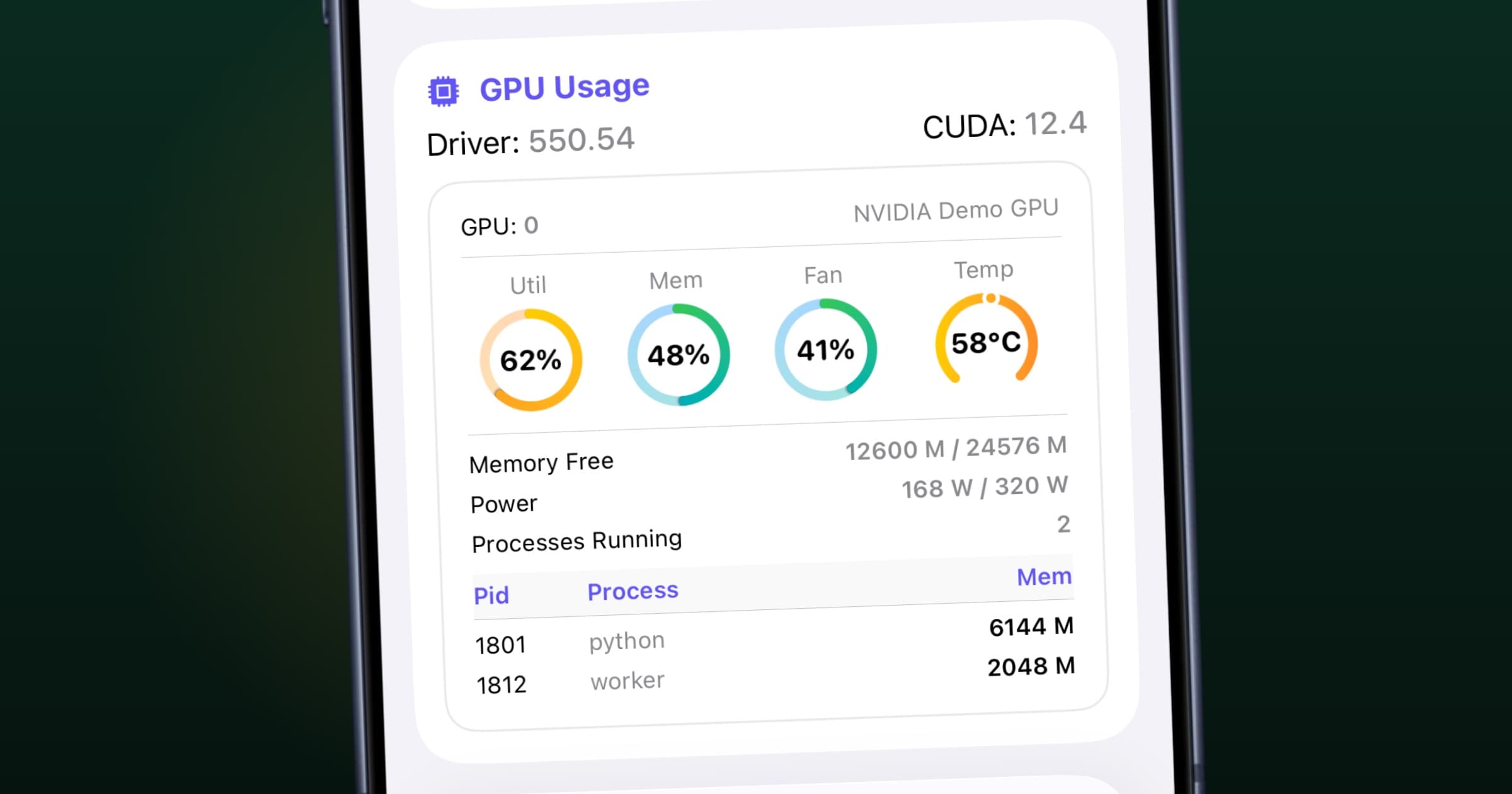
On the first refresh, SwiftServer checks for an NVIDIA driver. If it finds one, GPU Usage appears at the bottom of the status page, with the driver and CUDA version on top and one tile per card:
- Util, Mem, Fan, and Temp as four gauges, blue through orange to red as the value climbs.
- Memory free against total, power draw against the default limit, and the number of processes running.
- Under each card, the compute processes on it, with PID, name, and the memory each one holds.
That last table saves a login. A training script that exited and left 6 GB behind, a notebook kernel nobody closed, a second model server that should not be running: each one shows up on the phone, under the card it is really on.
A host with four cards gets four tiles. On iPad and Mac they sit side by side; on iPhone they stack.
3. Put it where you will see it
If GPU Usage is the card you open the app for, drag it to the top of the status page in the layout editor. The arrangement applies to every machine.
For a job that runs for hours, open a Mosh terminal on the same machine and leave it in nvidia-smi -l or tail -f on the training log. The session survives a locked phone and a change of network, so checking in from the train takes one tap.
Questions
Do I have to install anything on the GPU server? No. The NVIDIA driver is all SwiftServer needs, and the read-only readings travel over the SSH connection you already use.
Does it work with Ollama, vLLM, or Open WebUI? The GPU card reads the driver, so it shows whatever is using the card, including model servers in Docker. If they run in containers, the Docker card sits right above with each container's CPU and memory.
Does it show Apple Silicon or AMD GPUs? No. The readings come from the NVIDIA driver. A Mac server shows CPU, memory, disk, and network cards, without a GPU card.
Is GPU monitoring free? Yes. The GPU card is part of the free tier. Premium removes the three-server dashboard limit.
The GPU monitoring page has the overview, and the status cards docs describe every reading on the card. For a comparison with the other monitoring apps on the App Store, read the best server monitoring app for iPhone.
Related posts
September 18, 2026
The Best Server Monitoring App for iPhone in 2026
Seven iPhone apps that show CPU, memory, disk, network, GPU, and Docker for your servers, compared on what they monitor, whether they need an agent, platforms, and price.
August 19, 2026
How to keep an SSH session alive on your iPhone when the network drops
Mosh keeps the shell running through a locked phone, a tunnel, and a switch from Wi-Fi to cellular. Here is how to set it up with SwiftServer in five minutes.