
September 2, 2026
How to manage Docker on a VPS from your phone without exposing the API
Restart a container, read its logs, and pull a new image from your iPhone, over the SSH connection you already have. The Docker daemon stays unreachable from the internet.
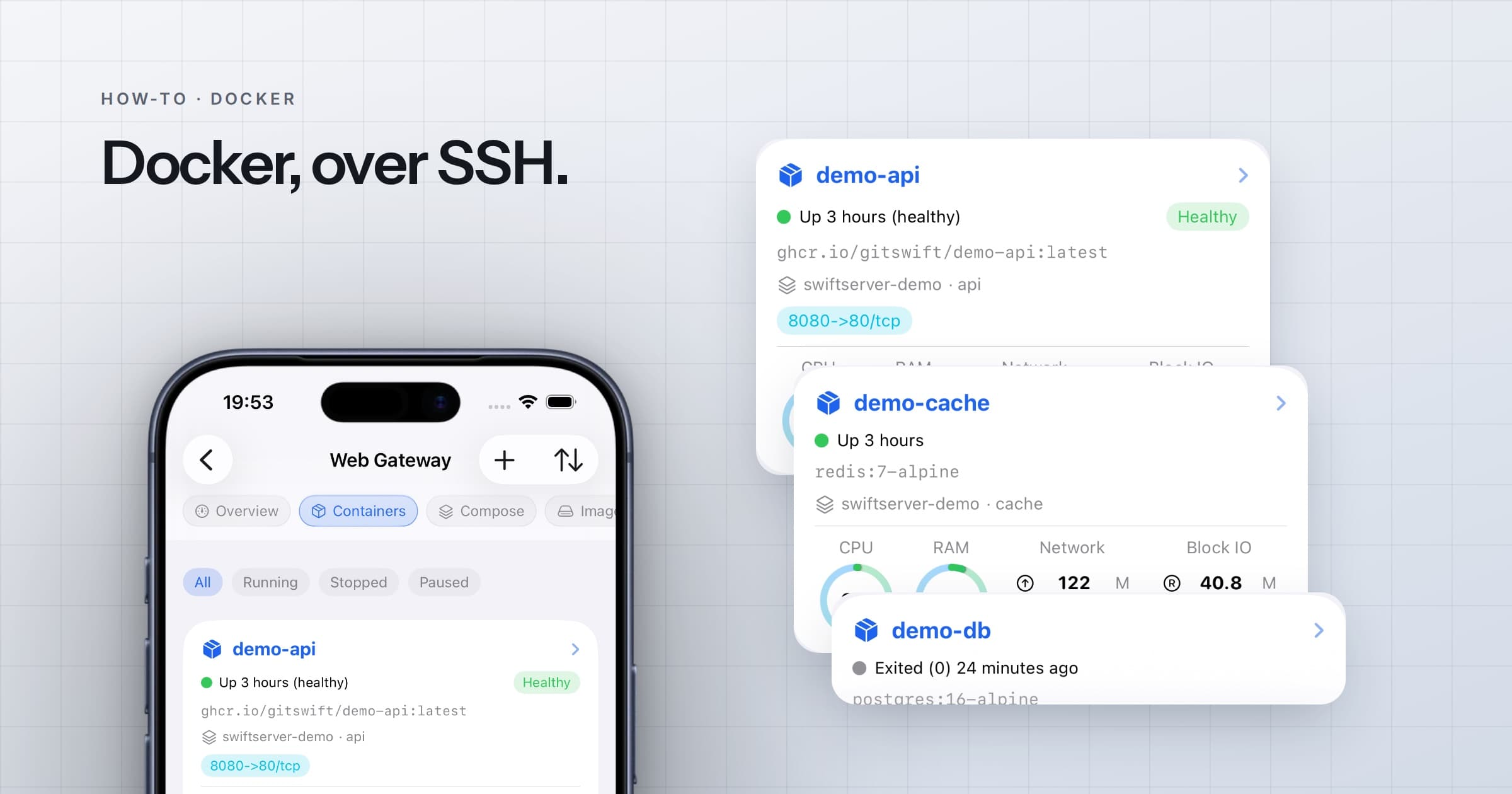
The usual advice for managing Docker remotely is to open the Engine API on a TCP port behind TLS. On a VPS, that adds a listener on the internet and a certificate to rotate, and one mistake leaves the daemon open to anyone.
SSH is the simpler route. Anyone who can SSH into the server can already reach its Docker socket. SwiftServer speaks the Docker Engine API over that connection, the same way docker does on the box. The server gets no new listener or package.
What you need
- A VPS with Docker running and a user that can use it, either root or a user in the
dockergroup. - SSH access from your phone, with a password or a key. If you can run
docker psafter logging in, you are ready.
Rootless Docker, Podman-free setups, and the Mac runtimes (Docker Desktop, OrbStack, Colima, Rancher Desktop) all work.
1. Add the VPS
Open SwiftServer, tap +, and add the VPS with its address, port, and login. Test the connection, trust the host key, save.
2. Open the Docker panel
Open Toolbox → Docker and pick the machine, or tap the Docker card on the machine's status page. The connection walks through four stages, Connect → Detect Engine → Load Data → Ready, and the panel fills in.
The engine badge on the Overview tab shows how requests reach the daemon. Socket means sshd forwards straight into the Docker socket, the fast path. CLI Tunnel means SwiftServer bridges through the server's docker command, which works everywhere but is a little slower. The connection modes page explains how to get the fast one, usually a single line in sshd_config.
3. Do the thing you came for
- A container is misbehaving. Open it from the Containers tab, read the Logs live with errors in orange, then Restart. SwiftServer checks against a fresh snapshot, so the card says running once it really is.
- A deploy needs a new image. On the Images tab, Pull it with a progress bar per layer, then restart the container that uses it. Prune the old images when you are done.
- Something changed on its own. The Events tab keeps the daemon's stream, colour-coded. A cron job restarting a container or a container dying overnight shows up with a timestamp.
- A Compose project needs bouncing. The Compose tab lists every project with Up, Down, Restart, Pull, and Logs.
Questions
Do I have to open port 2375 or 2376? No. Everything goes through SSH.
Does it work with rootless Docker?
Yes. SwiftServer honours DOCKER_HOST and DOCKER_CONTEXT, then probes the usual socket locations, including the rootless one.
Can I exec into a container?
Yes. Open a running container and choose Open Shell under Operations. SwiftServer starts bash if the image has it, otherwise sh, as a regular terminal session over the same SSH connection. It is part of Docker management in Premium.
What is free? Reading everything: all seven tabs, live stats, charts, and events. Actions such as start, stop, pull, prune, and Compose operations are part of Premium.
Does it work on a Raspberry Pi or a home server? Anywhere Docker runs on Linux. For the setup on a Pi, see monitoring a Raspberry Pi.
The Docker feature page has the overview, and the Docker docs cover every tab and the connection modes.
Related posts
August 5, 2026
How to monitor a Raspberry Pi from your iPhone
Turn on SSH, add the Pi as a machine, and its CPU, temperature, memory, storage, and network arrive on your phone within seconds. Nothing to install on the Pi.
April 22, 2025
Major Update - Powerful Docker Management Comes to SwiftServer 1.1.0
Manage Docker containers, images, volumes, and compose files directly from your iOS and macOS devices with the latest SwiftServer 1.1.0 update.